

When you analyze data, understanding its distribution is crucial, and that's where a Normal Probability Plot in Excel comes in handy. This tool helps you visually assess if your dataset follows a normal distribution. By plotting your sorted data against theoretical z-scores, you can quickly identify patterns. But before you jump into creating the plot, there are specific steps and considerations to ensure accuracy. Let's explore how to set up your data effectively.
Understanding Normal Probability Plots

When you're analyzing data, understanding normal probability plots can be essential for assessing whether your dataset follows a normal distribution.
These plots visually represent your data against a theoretical normal distribution. The x-axis shows the sorted values from your dataset, while the y-axis displays the expected z-scores based on the normal distribution.
If your data points closely align with the straight line in the plot, it's a strong indicator that your dataset is normally distributed. Deviations from this line suggest non-normality, which could impact your analysis.
Importance of Normal Distribution in Data Analysis
The importance of normal distribution in data analysis can't be overstated. It serves as a foundation for many statistical methods, allowing you to make inferences about your data.
When your data follows a normal distribution, you can apply various techniques like hypothesis testing and regression analysis more effectively. It simplifies calculations and helps you estimate probabilities easily.
Moreover, many statistical tests assume normality, so knowing if your data fits this distribution is crucial. If your data is normally distributed, you can confidently interpret results, make predictions, and draw conclusions.
Ultimately, understanding normal distribution ensures you get reliable insights, guiding you in making informed decisions based on your analysis.
Preparing Your Data in Excel

Preparing your data in Excel is crucial for creating an effective normal probability plot. Start by organizing your data into a single column, ensuring that there are no empty cells or duplicates. If your dataset contains outliers, consider addressing them, as they can skew your results.
Next, sort your data in ascending order for easier analysis. Make sure your data type is consistent; numerical values should be formatted as numbers and not text. It's also helpful to label your data clearly, so you know what you're working with later.
Finally, double-check for any errors or inconsistencies before moving on. With clean, organized data, you'll set yourself up for a successful normal probability plot.
Calculating Percentiles for Normal Probability Plot
To create a normal probability plot, you need to calculate the percentiles of your dataset, which helps in assessing how well your data fits a normal distribution.
Start by sorting your data in ascending order. Next, determine the rank of each data point using the formula: (rank – 0.5) / n, where "n" is the total number of observations. This gives you the cumulative probability for each value.
Then, multiply this cumulative probability by 100 to convert it into a percentile. You'll want to do this for each data point, ensuring you've got a complete set of percentiles.
Once you have these percentiles, you can use them in the next steps of your normal probability plot creation.
Creating the Scatter Plot

Once you've calculated the percentiles, you can create the scatter plot that visually represents your data against the expected values of a normal distribution.
First, open Excel and select the data you've prepared, including both your actual values and the corresponding expected values. Go to the "Insert" tab and choose "Scatter" from the Chart options. Select the "Scatter with Straight Lines" or "Scatter with Only Markers" option, depending on your preference.
Next, plot your calculated percentiles on the y-axis and the expected z-scores on the x-axis. Ensure the data points are clearly marked for easier interpretation.
This scatter plot will provide a helpful visual for analyzing how well your data fits a normal distribution.
Adding the Trendline
After you've created your scatter plot, adding a trendline can significantly enhance your analysis of how well your data aligns with a normal distribution.
To do this, right-click on any data point in your scatter plot and select "Add Trendline" from the menu. In the Trendline Options, choose "Linear" to fit a straight line to your data.
Make sure to check the box for "Display Equation on chart" if you want to see the equation of the trendline. You can also choose to display the R-squared value, which shows how closely the data fits the line.
Adjust the line's formatting for better visibility, making it easier to assess your data's normality at a glance.
Interpreting the Normal Probability Plot
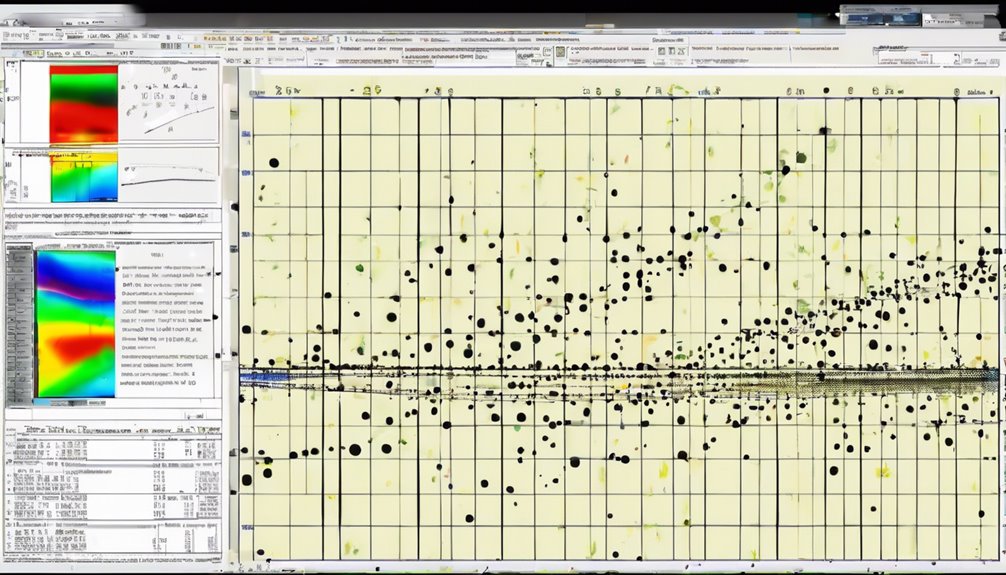
With the trendline added, you can now interpret the normal probability plot to assess your data's alignment with a normal distribution.
First, look at how closely your data points follow the trendline. If they fall close to it, your data likely represents a normal distribution. When points deviate significantly from the trendline, especially in the tails, it suggests your data mightn't be normally distributed.
Pay attention to clusters or gaps in points, as these can indicate underlying issues with your data. If you see a curve or an S-shape, that's a sign of skewness.
Common Issues and Solutions
When creating a normal probability plot in Excel, you might encounter several common issues that can affect your results.
One frequent problem is having your data not follow a normal distribution, which can skew your plot. To resolve this, consider transforming your data using logarithmic or square root methods.
Another issue could be improper axis scaling, making it hard to interpret the plot. You can fix this by ensuring your axes are set correctly, often using the "Format Axis" option.
Lastly, missing data points can lead to misleading results. Ensure your dataset is complete before plotting.
Enhancing Your Plot for Better Visualization

Addressing common issues in your normal probability plot can set the stage for improved visualization.
First, ensure your data is clean and free of outliers; they can skew your results. Next, adjust the axis scales for better clarity. You can also enhance your plot by adding gridlines, which help in reading values more easily.
Consider using different marker styles or colors to differentiate data points, making it easier to identify trends. Additionally, including a reference line can provide a clear benchmark for comparison.
Finally, don't forget to label your axes and provide a title, as this contextualizes your findings for anyone reviewing your plot. These enhancements can significantly improve the readability and interpretability of your normal probability plot.
Conclusion
In conclusion, creating a Normal Probability Plot in Excel is a straightforward process that can significantly enhance your data analysis. By following the steps outlined, you can easily assess the normality of your dataset and make informed decisions. Remember to interpret your plot carefully and address any common issues that arise. With practice, you'll not only improve your analytical skills but also gain deeper insights into your data's distribution. So, give it a try and see the results for yourself!